

Note: Sets are on the main branch after F[no] 0.4.8rc1. The 0.4.7 release and 0.4.8rc1 do not include them.The composer is the form that starts a new agent session. Start a session from the composer shows the whole form. A set fills the settings for you. You still type the prompt and press
Enter.
Before you start
- Install F[no] and open the mux, as in Create a mux workspace and start a session.
- Know which settings you reuse. For example, one harness, one model and one effort for daily work.
What a set holds
A set holds these settings:
A set does not hold the project folder, the branch or the prompt. An empty setting means the harness decides.
You can keep up to nine sets. They live in
composer-sets.json in the mux directory on this machine. If you export FNO_MUX_DIR, that folder is the mux directory. A set does not travel to another machine.
Save a set
- Open the composer and choose the settings you want, as in the composer guide.
- Click
[more]. It sits at the bottom left of the card, opposite[start]. A list opens. It holds the flags, your saved sets and, as its last row,save as set. - Type
save. The list narrows to thesave as setrow. PressEnter. The prompt line readssave set as:. - Type a name and press
Enter.
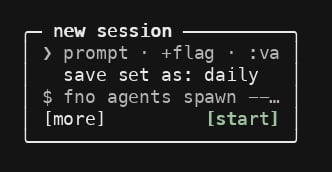
-, + or :.
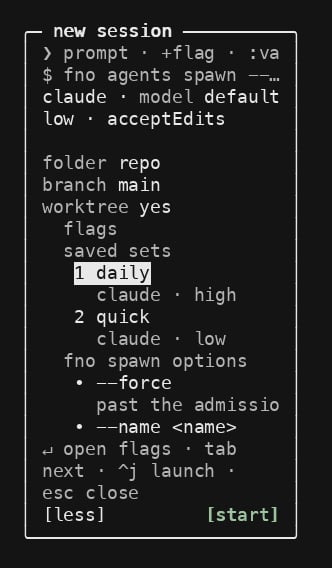
The composer saves the set and shows no message. To check it, click [more] again. A saved sets group now lists your sets at the top, numbered from 1. Each row shows the number and name. The next line shows the harness, model and effort, for example claude · high. The set also keeps the permission mode, but the row does not show it.
Esc while you type the name to cancel the save.
Apply a set
Pick one of three ways. Each way fills the composer’s own fields. A set cannot start anything the pickers refuse.- Digit. Press
Tabtwice from the prompt. The firstTabunfolds the chips and focusespermission. The second moves focus toharness. Then press1to9. The digit is the set’s number in the list. - Tap. Click
[more], then click the set’s row. Use this on a phone. - Name. In the prompt, type
:and the first letters of the name. For example,:dai. Asetgroup leads the list. It holds the same sets that the[more]list shows undersaved sets. PressEnterto pick the highlighted row.
Warning: Do not press a digit after only oneTab. Thepermissionchip takes free text. A digit there goes into the permission value, for exampleplan2. PressBackspaceto remove it, thenTabto the next chip.
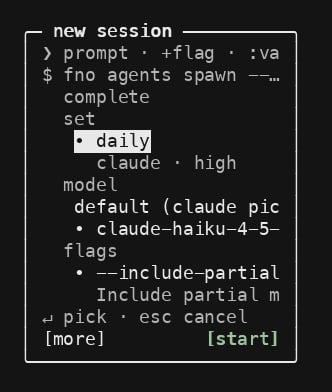
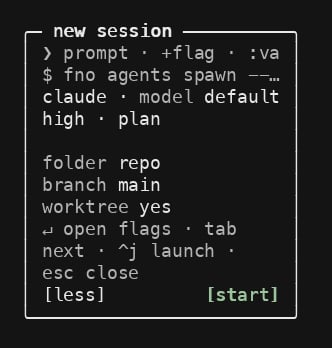
Tab to unfold the chips. They show the new settings. The composer also applies the set’s permission, host, placement and worktree box. Then click [less], type your prompt and press Enter to start the session.
If a digit has no set behind it, nothing happens.
Change or replace a set
You edit a set by saving over it.- Set the composer to the new settings.
- Click
[more], typesave, and pressEnter. - Type the same name. The match ignores case.
9 sets saved; save under an existing name to replace one. Save under an existing name to replace that set.
Messages you can see
If a set names a harness that is no longer installed, the composer applies the other settings. It showsset daily: harness codex is not installed; the rest applied. Install the harness, or pick another one and save the set again.
If the composer shows composer-sets.json unreadable, so no sets, the file has damage. The composer opens with no sets. Save a set to write a fresh file. The next save replaces the old file.
If the composer shows composer-sets.json not saved, the mux cannot write the file. The rest of the message names the cause. Check that the mux directory is writable.
Next steps
- Create a mux workspace and start a session: the whole composer form, one control at a time.
- Set mux keys and resize splits: the keys that move focus off the prompt.
- Run a fleet: watch the sessions your sets start.