

Before you begin
Install F[no] through the quickstart. You need an authenticated coding harness and a Git repository that your harness trusts.- A harness is the agent program, such as Claude Code, Codex CLI, OpenCode or pi.
- A lane is the way that the worker runs. The next section compares the lanes.
Choose a lane
What the agent runs
Add--as to choose a lane. If you add no --as, the worker uses thread.
--once gives the same result as --as headless: one answer and no session. You cannot mail, peek at or attach to a headless worker. By default, F[no] keeps no record of it.
To see a headless run in the mux while it runs, add --mux. The run then keeps a row in the session list. --mux needs --once or --as headless. The claude, opencode and pi harnesses keep the row.
headless run. In F[no] 0.4.9, the row stays in the list after the run ends. To remove it, see Clean up.
Not every harness has every lane. The harness reference lists the lanes for each harness. If a harness has no thread lane, add --as pane or --as headless.
Reserve names before launching
What the agent runs
In F[no] 0.4.6,names.reserved excludes names from worker and lead naming. The latest release is 0.4.5. Your agent edits the global user config, normally ~/.fno/config.toml:
Start a worker
What the agent runs
Warning: This starts a persistent coding session. It can incur model costs. Use a repository that you trust.Your agent runs this from the repository root:
-H and its name.
The worker runs in the main checkout of the project, not in your current worktree. To choose the directory, add --cwd <PATH>.
The command returns after the launch, and a thread worker keeps running in the background.

Read the launch receipt
What the agent runs
The launch prints one line of JSON. This is a realthread receipt, formatted for reading, with four values masked:
name. The next commands use it.
If your prompt is a command, a receipt can also have
effective_message, command_fired and command_marker.
Your terminal can also show notes above the receipt, such as a slot note line about model limits. These notes do not stop the launch.
Watch the worker
What the agent runs
t-docs-example row. If you pipe the output, the command prints JSON.
Three readings tell you about the worker. They can differ.
To show only one kind of worker, filter the list:
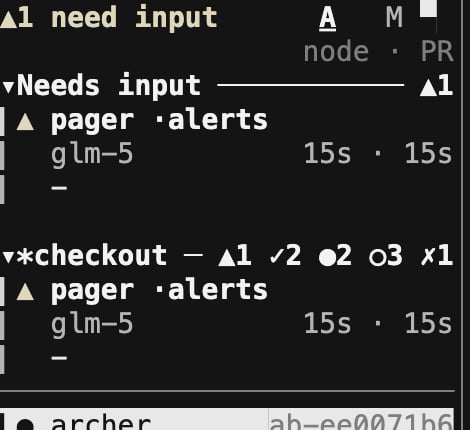
Find workers that need input
These mux controls ship in F[no] 0.4.6. The sideline is the panel that lists your sessions.- In your terminal, start the mux with
fno mux. - In the sideline’s Agents view, click the
N need inputcount to open the pinned Needs input section. - Select an agent row to open its session. Remote rows appear here too, with other machines enabled.
- Click the count again to close the section.
- To answer an open question, click the bell in the tab bar. Select Questions and open the question there.
Read the result
What the agent runs
peek reads the transcript. It sends nothing and it does not wake the worker. The answer is in the worker’s own words, so it changes from run to run. This is a shortened example from a real run:
Attach to the worker
What the agent runs
To type to the worker yourself, attach to it:fno mux ls.
The worker keeps running after you leave. Each harness has its own keys to leave, so read the harness footer or its docs. In Claude Code, for example,
← goes back to the agent list and Ctrl+Z goes back to your shell.
If the harness has no attach path, the command refuses and names the reason. If the worker has stopped, the command prints portal reach: no live row answers t-docs-example. To continue, use resume.
Read and type to a running worker
What the agent runs
Athread worker stays interactive while it runs in the background. On Claude Code, F[no] runs the lane with claude --bg. The worker keeps its row, takes mail, and shows its screen in a pane. Only the headless lane is one-shot: one answer and no session (Choose a lane).
A thread worker starts with no pane. One command opens one:
thread, read and send commands need a running mux. To check, run fno mux ls. The command page guide shows how to start one.
The command opens a portal, a pane that shows the worker’s live screen. With no flag, the command focuses the worker’s portal and opens one for a worker with none. To open the portal at launch, add --portal new to fno agents spawn.
List the panes. Each line starts with the pane id:
t-docs-example carries name=t-docs-example.
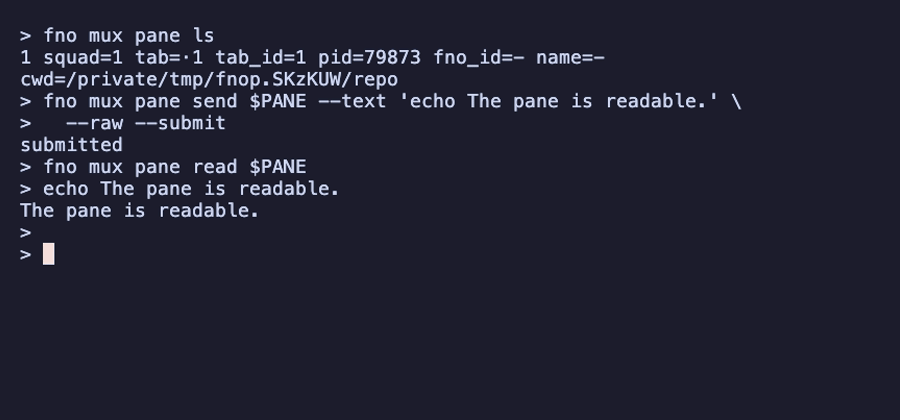
read shows the harness screen, and send types at its prompt.
Read the screen with the id from the list:
--submit, the command types the text and leaves it at the prompt. When the prompt takes the text, the command prints submitted. If the pane shows an option prompt with numbered choices, the command refuses and types nothing. To answer that prompt yourself, add --raw: fno mux pane send <PANE_ID> --text 1 --raw --submit types the digit 1.
Mail reaches the same worker. If the worker is mid-turn (while it works on an earlier message), your message waits in its message queue, or steers the live turn. The receipt says which. When the turn ends, the worker reads a queued message. To work in the session yourself, attach.
Note: Claude Code shows the same session in its agent view. Runclaude agentsto list sessions. Runclaude attach <ID>to open one in your terminal, with the id thatclaude --bgprinted at launch.
Take a screen capture from a worker
What the agent runs
On macOS, a worker shell often has no Screen Recording permission, soscreencapture fails in it. The mux server runs under your terminal app, which can hold that permission. fno mux pane run --shot runs the capture in a new pane on that server:
Use
--rect or --window-id, not both. Give no command after the options: --shot writes its own command. When the capture ends, the pane closes.
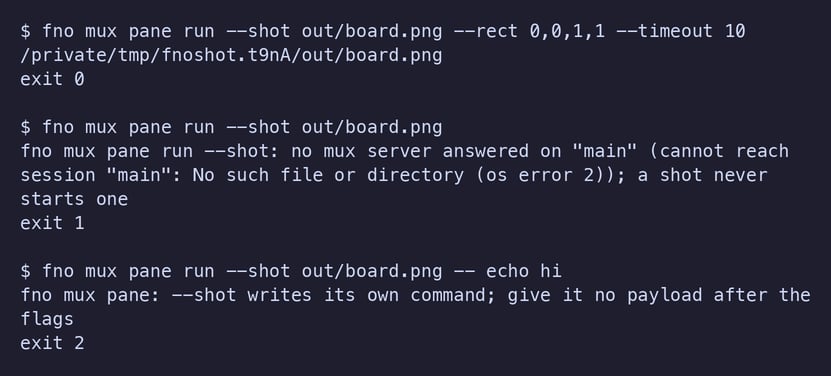
0. Exit 2 means the options are wrong. Exit 1 means no capture. The message names the cause and the server:
--window-id takes the macOS window number, the value that screencapture -l takes.
Add parallel work
What the agent runs
Give each worker a separate end state and separate files. Keep tasks that edit the same files together until you resolve the dependency. For implementation work, point a worker at a backlog node and its plan. Ship a change shows the command. Work organization explains ownership and worktrees. If open PRs exceedagents.max_open_prs (default 20), the spawn gate can hold a new target seat in F[no] 0.4.6. The refusal names open_pr_cap and the count. Close or merge PRs before retrying. Existing-PR work stays exempt. A build worker below agents.min_free_disk_gb (default 20.0 GB) gets a disk_floor refusal naming free space and the floor. Free disk space before retrying. To change either limit, ask your agent to set the global values as shown in fleet spawn limits. --force bypasses neither check.
With 36 open PRs and the default cap, the gate prints:
Clean up
What the agent runs
Keep this worker for Message agents. After that page, Recover a worker shows how to remove it. If you skip messaging, remove the worker now:headless row that you kept with --mux is removed the same way. In F[no] 0.4.9, rm removes a finished headless row without --force:
0 and prints a removed: line with the name.
Next steps
- Work a backlog with agents: choose a lead level, grant a role, or contact a lead.
- Run one fleet across machines: add a second machine to the same backlog and chat.
- Message agents: send the worker a follow-up.
- Recover a worker: inspect a quiet worker, then resume or stop it.
- Harness reference: see which lanes your harness has.