

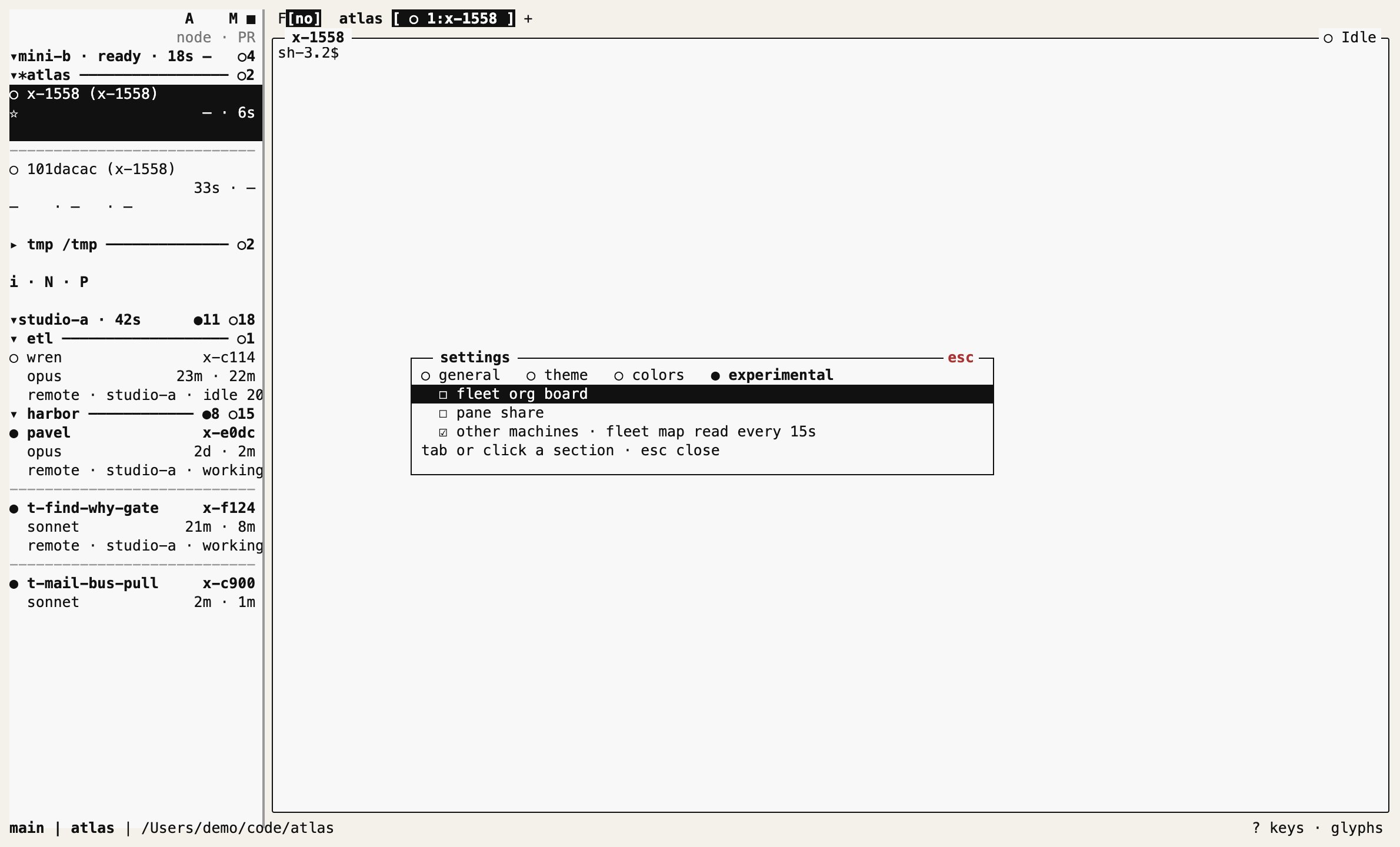
Experimental: Remote sessions are off by default. In the mux, open menu > settings > experimental and turn on other machines. Each machine needs F[no] 0.4.6 for the remote sessions and Fleet tab actions described here. Version 0.4.5 does not include these features.
Connect each machine to the shared store
Ask your agent on each machine:What the agent runs
Each machine needs F[no] with remote-session support and a running F[no] daemon. Each daemon publishes its machine and sessions to the shared store every 60 seconds. The shared store is one libSQL primary on a private network, such as Tailscale. If no primary runs yet, set one up first: see Run one fleet across machines. Each machine must reach it. Each machine’s global~/.fno/config.toml must set store.remote_url to that primary’s URL. A project config cannot set this key.
If the primary requires authentication, set store.remote_token on each machine. The token can differ between machines. store.share_backlog is a separate option. You do not need it to see remote rows.
The agent checks the fleet map on each machine:
fleet map needs store.remote_url: this machine shows alone, check the global config. If a machine reads offline, check its daemon and connection to the primary. If a remote machine appears but has no session, start one there with Run a fleet.
Opening a remote row also needs SSH access from this machine to the host named in the fleet map. The remote SSH shell must find fno on its PATH. Configure SSH for that host before you open its row. The shared store discovers sessions. SSH carries the terminal screen and input after you open one.
Find the remote row
- In your terminal, start the mux with
fno mux. - Open menu > settings > experimental. Turn on other machines.
- Return to the sideline. If the sideline is hidden, press Ctrl+B, then b.
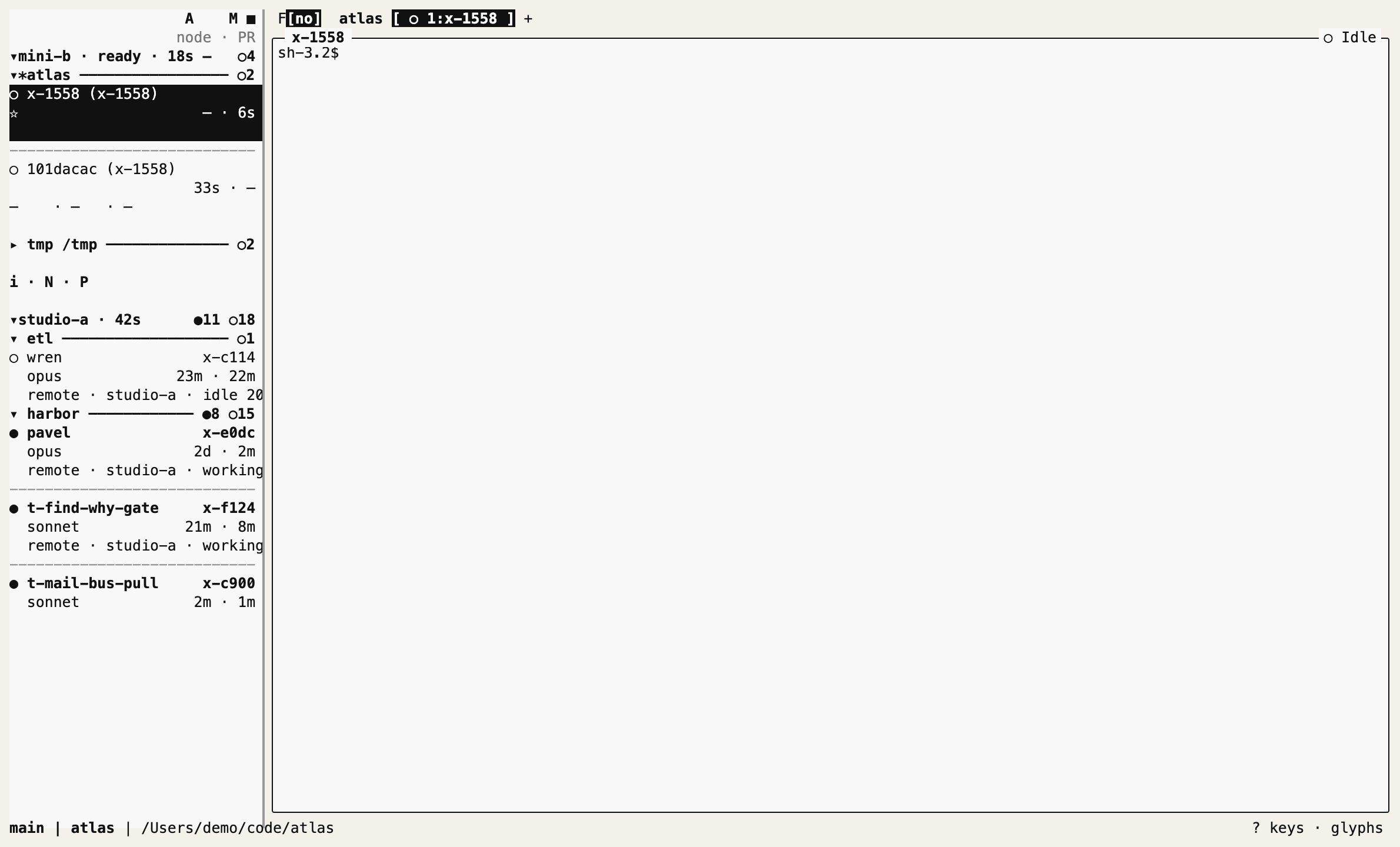
- Find the header for the machine you want to use. This machine appears first. Each header shows the host,
readyoroffline, and the age of its newest report. - Find the session under that machine’s project or workspace. To change the grouping, press Ctrl+B, then W.
name@host.
These keys use the built-in defaults. Mux keys covers key presets. In F[no] 0.4.6, press Ctrl+B, then ?, for the focused view’s footer grid. Press ***** without the prefix for the full keybindings table.
Open and drive the session
- Press Ctrl+B, then w to select a sideline row.
- Use the arrow keys to select the remote row.
- Choose where to open it. Press Enter to use portal 0, replacing the session that portal shows. Clicking the row does the same.
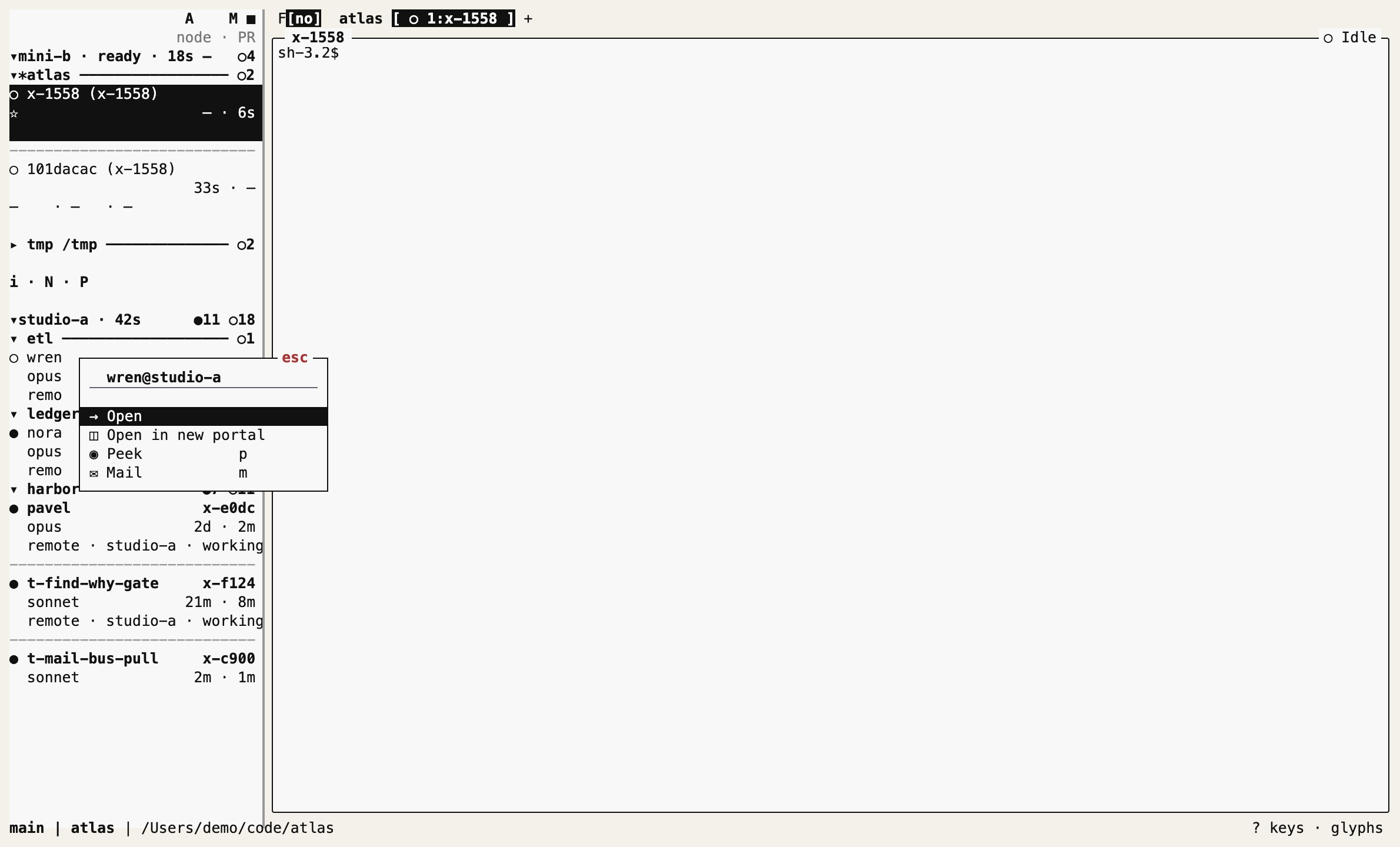
- For a new portal instead, press P in the row selector, then Enter in the portal picker. You can also right-click the row and choose Open in new portal.
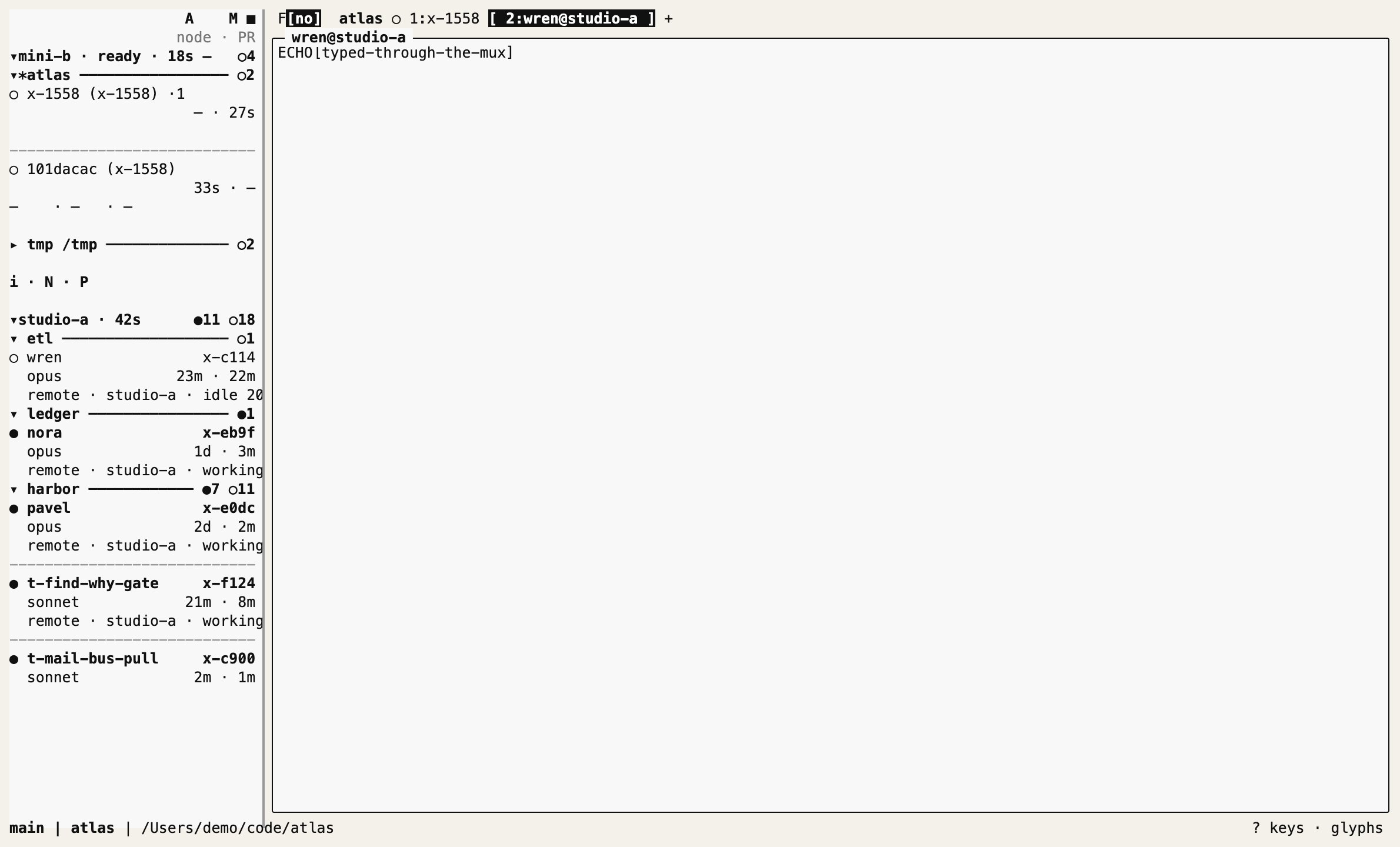
- Click inside the opened pane. Check the pane title. It reads
name@host, with a⇄symbol. Type into that pane to drive the remote session.
Note: The 0.4.7 release and the 0.4.8rc1 and 0.4.8rc2 pre-releases paint the band over ssh as a solid block, with the words invisible. A build after 0.4.8rc2 sets the terminal’s truecolor flag on the attach that runs on the far machine, so the words read again.
Peek, view, or spawn from the Fleet tab
The Fleet tab uses SSH to act on another machine. Complete the shared-store and SSH setup first. A seat is an agent session listed on that tab.- In the mux, press Ctrl+b, release it, then press Shift+g to open the org board.
- Use the left or right arrow to select Fleet in the board’s tabs. Use
jorkto select a machine or session. PressEnterto expand a machine or group. - To peek at a remote session’s last 40 transcript records, select its row and press Space. Press
Escto close the peek page. - To follow that session, select its row and press Shift+p. A local pane follows the transcript without sending input.
- To start a worker on a machine, select its machine, lead, or session row. Press
s, type the worker’s task, then pressEnter.
org-view.
The follow pane only reads the transcript. To type to the session, open a portal from the sideline.
A new worker uses the selected session’s directory. Without a selected session, it uses the first session on that machine that reports a directory. If no session reports one, the board refuses and names the command to use with an explicit directory.
A stale machine report blocks these actions. Check its daemon and shared-store connection, then wait for a fresh report. A failed SSH connection shows its error. Only one action runs at a time.
The board refuses to spawn on a machine with a different stated owner. If the machine takes no work, the prompt warns you, but a task you submit still starts. The x key stops local sessions only. On a remote row, it names the stop command to run on that host.
Restart an older mux server
Ask your agent:What the agent runs
An updated binary can still connect to an older running server. Each machine needs a build with remote-session support. Each machine’s running mux server must also support the feature.
The agent lists servers on the affected machine:
fno mux kill-server <MUX_NAME>. Here, <MUX_NAME> is the name from that list. The command refuses while live unkept panes exist, because ending that server also ends those panes. The agent reports that refusal for your decision.
After the agent stops the server, run fno mux in your terminal on the affected machine. For a remote host, open a terminal on that host for this step. Then reopen the remote row from your local sideline. Use F[no] 0.4.6 on both machines for these controls.
Next steps
- Run a fleet: start another worker.
- Message agents: send a follow-up without opening its screen.
- Command page: read machine and session state in a browser.