

fno config accounts use. Switch from the CLI shows that form.
Terms
- Mux: the F[no] terminal workspace that holds your agent panes.
- Provider: the service that supplies models, such as Anthropic, OpenAI, or a local model server.
- Account: one saved credential that F[no] can run a harness with. Each has an id, such as
makers. - Harness: the agent program an account runs, such as
claudeorcodex. - Managed account: an account whose saved login F[no] keeps and can put in the harness’s one shared login. Every
claudesession on a Mac uses one shared login, and everycodexsession uses one too. - Active: the account that
fno config accounts uselast set. The view marks it[ACTIVE].
Before you begin
- Install F[no] through the quickstart.
- Open the mux. To check that one runs, run
fno mux ls. - To switch, you need at least two saved accounts. To add one in the view, see Add or remove an account.
Open the Connections view
What the agent runs
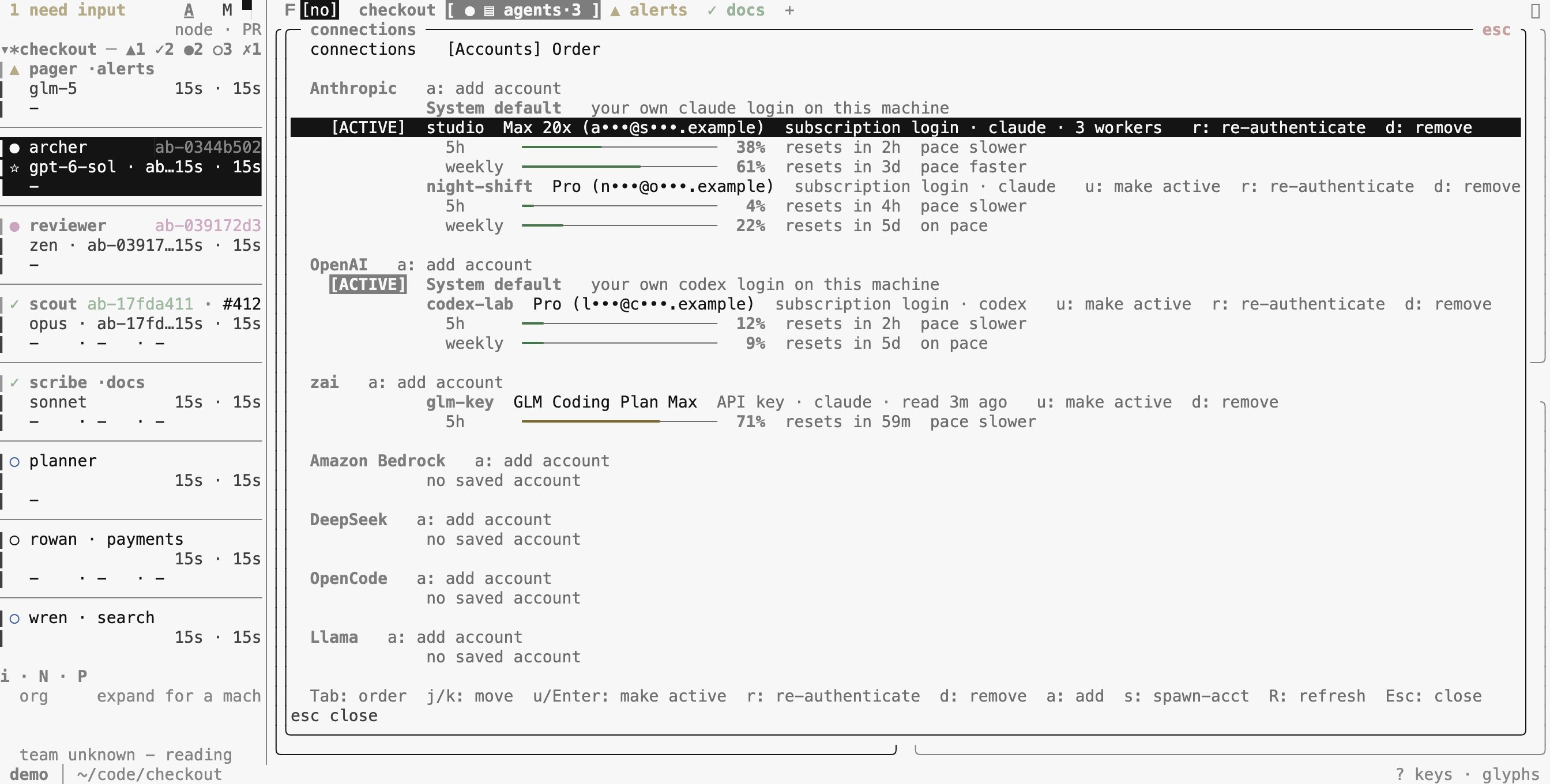
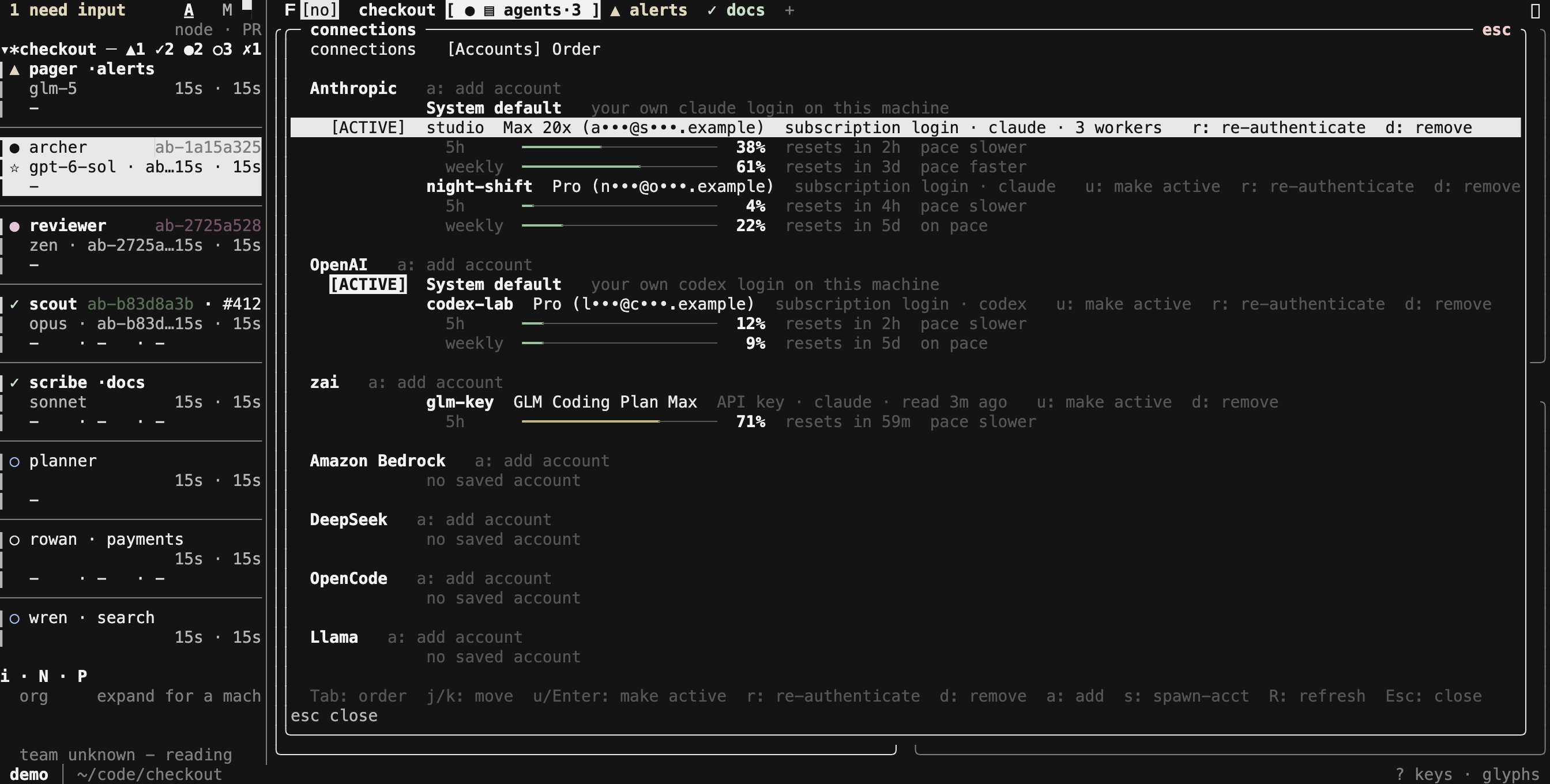
PressCtrl-b, then A (a capital A). You can also open the sideline menu and pick connections (accounts, usage).
The view opens on the Accounts tab. Tab moves to the Order tab, which orders account combos. Esc closes the view. R reads the accounts and usage again.
Read the cards
What the agent runs
The view shows one card for each of these providers, in this order: Anthropic, OpenAI, zai, Amazon Bedrock, DeepSeek, OpenCode and Llama. A provider that an account names and that is not in this list gets its own card after them. An account goes on a card by the provider it bills. A route, a Bedrock key, or a base URL names that provider. For example, aclaude account whose base URL is https://api.z.ai/api/anthropic goes on the zai card. An account with none of these goes on its harness’s own card: claude on Anthropic, codex on OpenAI.
A card with no saved account still shows, with the line no saved account. Press a on its title line to add one.
The first row on the Anthropic and OpenAI cards is System default. It is your own claude or codex login on this machine, with no saved account named. If no account on that card is active, this row carries [ACTIVE].
Each account row shows, in order:
- The
[ACTIVE]mark on the active account. A$before it marks the account that new spawns from this mux bill. Pick the account for new spawns sets it. - The account id, its plan, and its email. For example:
studio Max 20x (j•••@e•••.com). - The kind:
subscription loginorAPI key. - The harness, the live workers, the age of the usage reading, and the age of the saved login. The row leaves out a field with no value.
- The keys that work on this row, such as
u: make active r: re-authenticate d: remove.
[email protected] reads j•••@e•••.com. The plan comes from the account’s plan key in config.toml. With no plan key, a claude account shows the tier of its saved login, such as Max 20x or Pro.
If the saved login serves another account, the row shows !serves <id>. If it shares its login with another account, the row shows !shared-identity. If you see one, press r on the row to sign in again.
A row that is too wide for the overlay drops fields. First the login age goes, then the reading age, then the kind. The selected row keeps all its keys. Every other row keeps at least u: make active.
Under each account row, one bar shows each usage window:
pace slower means more than 5 points below an even spend, and pace faster means more than 5 points above it. Any other value reads on pace. A window with no reset time in the future shows only the percent.
If an account has no reading yet, the line under it says why, such as not measured yet or login expired: r to log in.
Make an account active
What the agent runs
- Press
jorkto select the account. - Press
uorEnter. A prompt opens. - Read the prompt, then press
Enterto switch. Any other key cancels.
claude account it reads like this:
claude process that you ran outside the mux is not in the count. The result line after the switch carries the real count.
The view always passes --scope global, so the switch holds in every directory. What happens next depends on the account:
If the account is already active, the view says so and runs nothing.
Sign in again
What the agent runs
Pressr on a managed claude row to sign in to that account again. If the saved login no longer works or serves the wrong account, use r.
-
Select the account and press
r. A prompt opens: -
Press
Enter. A new pane opens and runsfno config accounts use makers --scope global --login. -
The pane prints
Sign in as <EMAIL> (step 1 of 2). Sign in to the browser as that account. -
The pane prints
step 2 of 2. Sign in as the same account again.
claude reads one, and the background workers read the other. Each login fills one item. Before it saves anything, F[no] checks that each login serves the account you named.
When it works, the pane ends with these lines:
wrong-account and saves nothing.
On other rows, r does this:
- A managed
codexrow with an expired login opens a pane withcodex login. Sign in there, then pressragain to save the login. On acodexrow whose login works,rsaves the current login again. - A
clauderow with its own config folder runs nothing. Sign in under that folder instead. - An API key or saved login folder row is not managed.
rsays so and runs nothing.
Pick the account for new spawns
What the agent runs
Presss on a claude row to bill new spawns from this mux to that account. The row gets a $ mark, and the view prints spawns now bill <ID>. Press s on the same row again to go back to the default account. This mark holds only in this mux, and it moves no login. s refuses a row that is not claude.
Add or remove an account
Note: The searchable provider picker is for F[no] 0.4.6. The 0.4.5 release uses the older account form.
Choose a provider
- Open Connections with
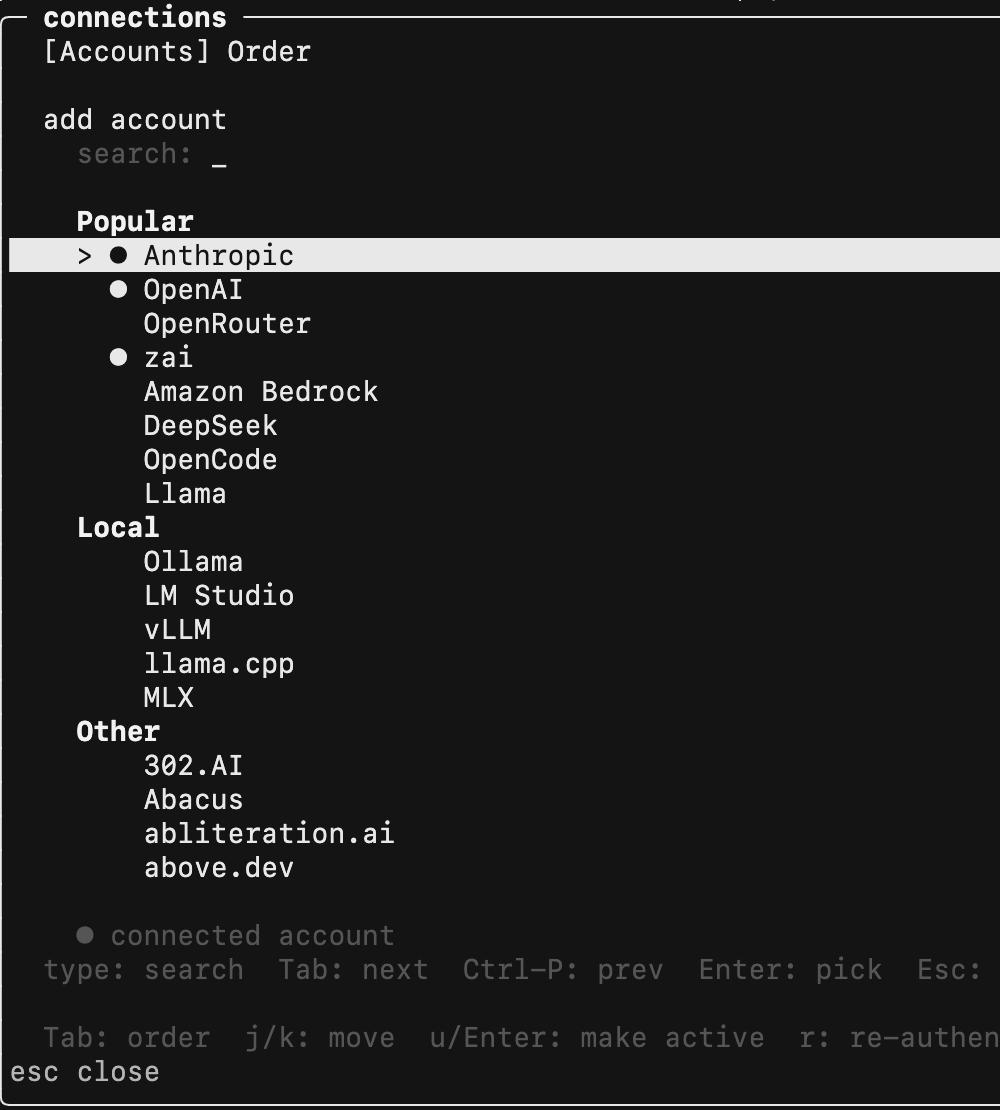
Ctrl-b, then capitalA. Stay on the Accounts tab. - Press
a. A searchable provider picker opens. - Type a provider’s name or ID to filter the list. Use Up, Down, or
Tabto move between matches. - Press
Enterto choose the highlighted provider. - Enter an account ID, then press
Enter. Use up to 64 lowercase letters, digits, or hyphens. The first character must be a letter.
Esc to cancel the form.
Complete the account form
For Anthropic or OpenAI:- Check the account kind, which selects its harness and login method. Anthropic starts with managed
claude, and OpenAI starts with managedcodex. - Press
Enterto open the login pane. - Complete the sign-in there.
- Return to Accounts and select the pending account row.
- Press
rto save the login. Check that the pending row becomes a saved account row.
Enter. Type the key, then press Enter to submit it.
For another catalog provider with a configured API key variable, type its key and press Enter. F[no] adds an opencode API key account with that provider’s route. If the catalog has no API key variable, the form uses the account-kind step instead.
Check for the saved account row after submission. If the command refuses, read the notice before trying again. An empty key reads api key cannot be empty.
Add a local server
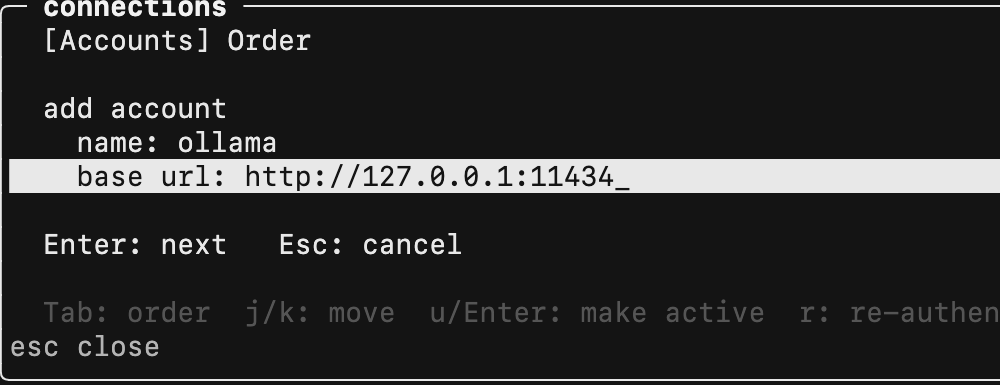
Start your local model server and load at least one model before you add it. The picker lists Ollama, LM Studio, vLLM, llama.cpp, and MLX.- Choose the server in the provider picker.
- Enter an account ID, then press
Enter. - Check the prefilled base URL. If your server uses another address or port, edit the URL.
- Press
Enter. F[no] asks the server for its models. If at least one model returns, it adds the account. - Check for the saved account row. If the notice starts with
no models from, check the server and URL, then retry.
Remove an account
- Select the saved account row.
- Press
d. The prompt readsremove account <ID>? (Enter=yes, any key=no). - Press
Enterto remove it, or any other key to cancel.
Read usage from existing logins
What the agent runs
Note: This command targets F[no] 0.4.6. The latest release is 0.4.5.
System default, and scoped Keychain items and .credentials.json files in Claude config directories. These directories include CLAUDE_CONFIG_DIR or ~/.claude, plus directories of configured Claude accounts. Copies with the same access token share one row.
It also reads Codex auth.json under CODEX_HOME or ~/.codex, and API keys from the environment or ~/.fno/.env. Environment values take precedence. It recognizes ZAI_API_KEY, Z_AI_API_KEY, BIGMODEL_API_KEY, KIMI_API_KEY, MOONSHOT_API_KEY, ANTHROPIC_API_KEY, OPENAI_API_KEY, and DEEPSEEK_API_KEY.
Rows show the provider, login kind, plan, masked identity, and available usage windows. Each window includes usage, reset time, and pace. A positive numeric pace means usage exceeds an even spend across the window. JSON contains a logins array, rather than the ordinary usage command’s provider-keyed object.
An expired token reports token-expired without a request. An unsupported API-key usage endpoint reports usage-unsupported. This applies to Kimi, Anthropic, OpenAI, and DeepSeek API keys. If a provider’s API key does not support usage, its subscription login can still support it.
Other failures report no-access-token, credential-rejected, or probe-failed. Unknown usage does not mean zero usage. The command still exits 0. If the read finds no login, text output reads no logins found on this machine.
See the CLI reference for output fields.
Switch from the CLI
What the agent runs
Run the same switch in a terminal:<ID> with the account id. Always pass --scope global. Without it, use writes the active mark into the project’s .fno/config.toml only.
To sign in again as part of the switch, add --login:
--login always runs the two browser logins. A saved login that still works does not skip them. It works only on a managed claude account. On any other account it stops with error: --login signs in a managed claude account. It needs a terminal. Without one, it stops and prints the command to run in a terminal.
To check the result, run fno config accounts list. The new account carries *.
Limitations
A switch moves every running Claude session
Everyclaude session on a Mac shares one login. A switch on a managed claude account moves the sessions that run now, not only new spawns. Plan the switch for a quiet moment.
A project setting can hide the switch
If a repo’s.fno/config.toml sets active under [accounts], that value wins inside the repo. If this hides a switch, the result line warns you. Remove the line so the global value decides.
Next steps
- Run a fleet: spawn workers and name the account each one bills with
--account. - Configuration reference: the other settings in
.fno/config.toml.