

mux.launch_screen, picks only the screen that the mux shows first when it starts.
After this page, you can open and close HQ, start a session or a lead from HQ, and make the mux open on HQ.
Terms
- Mux: the F[no] terminal app that holds your agent sessions.
- Pane: the area of the mux where one session runs. You type into it.
- Sideline: the mux’s side panel. It shows one view at a time, for example Agents, Backlog, or HQ.
- Seat: one agent session, shown as one row in HQ.
- Lead: the session that runs a group of seats. See Worker roles.
- Composer: the box where you type a task to start a new session.
prefix+iopens it. - Prefix: the key that starts a mux shortcut. The default is
Ctrl+b.prefix+Hmeans press the prefix, release it, then pressH. See Mux keys.
Before you begin
Install F[no] through the quickstart. Open the mux through Run a fleet.Open and close HQ
prefix+G also opens HQ in this release. It is the old key, and it goes away in the next release. prefix+V cycles the sideline views: Agents, Backlog, and HQ.
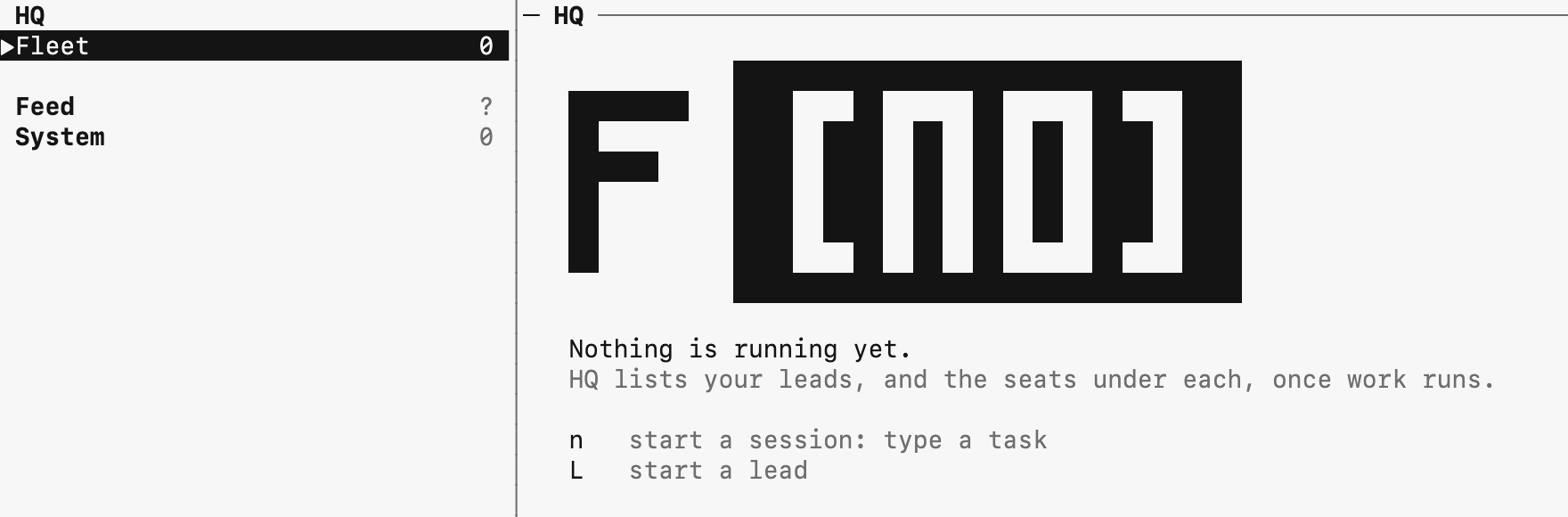
What HQ shows before work runs
When no seat runs, HQ shows an empty state. It names what HQ lists once work runs, and the two keys that start work.
Start a session or a lead from HQ
Your typing must go to HQ. When it goes to your pane, the HQ footer starts withtap to focus. To move your typing to HQ, click HQ. You can also press prefix+H two times. The first press closes HQ. The second press opens HQ with your typing on HQ.
The composer opens at the foot of HQ. HQ stays on the screen. The line that starts with
$ shows the command that F[no] runs for you. You do not type it.


- Type the task.
- Press
Enteror click[start]to start the session. PressEscto close the composer.
Esc, HQ shows again. While the composer is open, n and L type text into the task.
If the sideline is too narrow, the composer does not open. The mux shows widen the sideline to open the composer.
Which one to start
Both keys open the same composer. Pick by the shape of the work.n starts a worker. A worker runs one task. The seat reads and edits files, runs commands, and does the task itself. If one session can finish the work, start a worker. For example, type the whole task: fix the crash when a session name has a space.
L starts a lead. The seat’s first prompt is the lead skill over a scope: a project name or an epic id from your board. A lead does not build. It reads the board on a schedule, hands each ready node to a worker, and answers questions in its scope. If the work is a stream of tasks over one territory, not one task, start a lead. For example, complete the seeded line as /fno:lead billing to put one project under the lead.
A lead needs a granted role over its scope. If it holds none, it asks for the grant. See Grant a lead role.
Make the mux open on HQ
By default, the mux opens on Agents. To open on HQ, use the settings row or the config key. Both write the same key.Use the settings row
- Open the menu with
prefix+P, or clickmenuin the sideline footer. - Select
settings. If the modal opens on another tab, pressTabuntilgeneralis highlighted. - Under
launch, press the Up or Down arrow until theopen HQ on launchrow is highlighted. Then pressEnter.
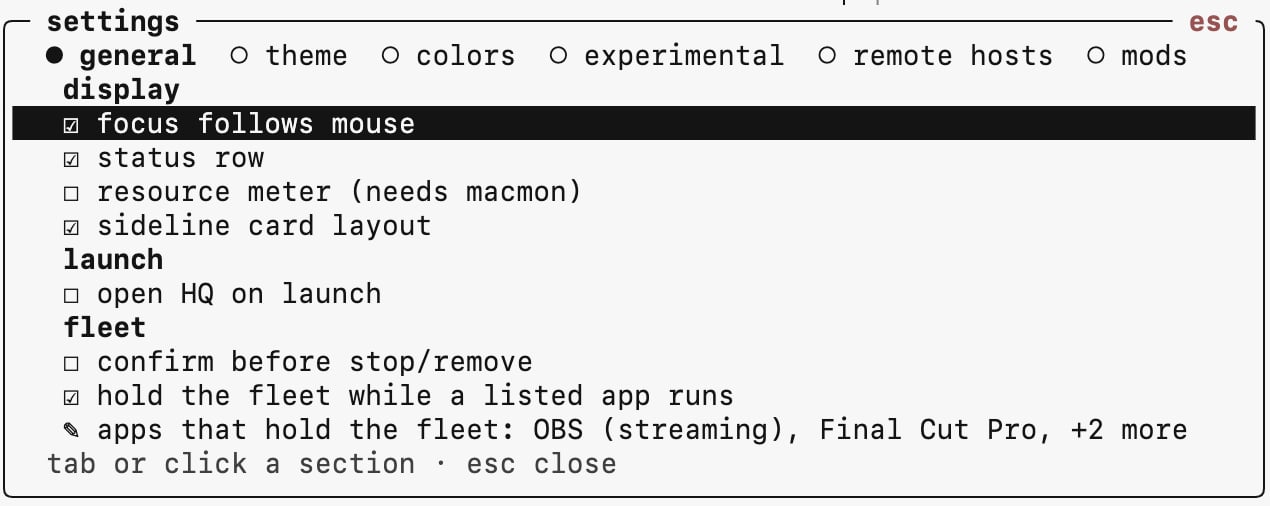
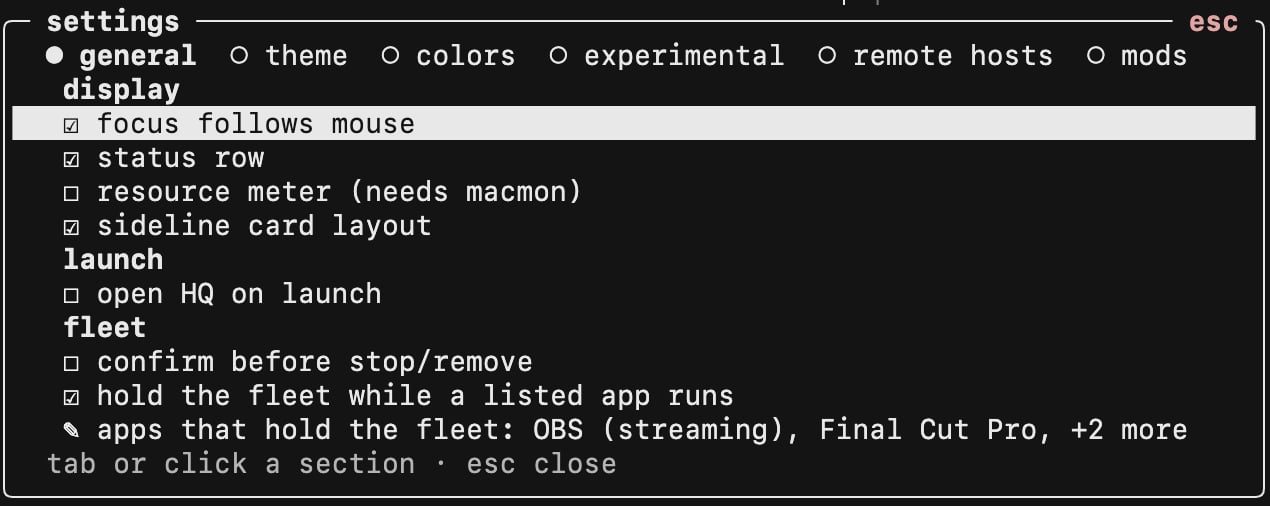
open on launch: hq. Press Enter again to go back to Agents. The mux then shows open on launch: agents. Press Esc to close the modal.
The row writes mux.launch_screen to the project config, .fno/config.toml, in the directory where you started the mux.
Set the config key
From the directory where you start the mux:
If the value is not
agents or hq, the mux uses agents. See Configuration reference.
When the mux opens on HQ, the keyboard stays on your pane. What you type goes to the pane, not to HQ.
You turned the board on in an earlier version
Earlier versions stored a fleet org board setting in the mux view file. When you start the mux for the first time after an update, the mux reads that setting one time. Then it removes the setting:- If you turned the board on, the mux writes
mux.launch_screen = "hq", so the mux still opens on HQ. - If you turned the board off, nothing changes. The mux opens on Agents, the default, and HQ stays available.
mux.launch_screen, the mux keeps your value.
Next steps
- Run a fleet: start the sessions that fill HQ.
- Mux keys: see every key, and change the prefix.
- Worker roles: learn what a lead and a seat do.