

Tip: To send a new follow-up through your agent and read its delivery receipt, see Message agents.
Before you begin
- Install F[no] through the quickstart.
- Run
fno mux. The command page guide shows the full setup.
Open the Messages view
- Press Ctrl+b, release it, then press Shift+m.
- The view opens with three columns: agents, conversations, and messages. A remote agent uses
name@host. - Move with
jandk, and pressEnterto open the selected agent’s conversations. - Move with
jandkagain, and pressEnterto read the selected conversation’s messages. - Press
Escto move back one column. From the first column,Esccloses the view.
open-messages.
Read a conversation
The reading pane paints the markdown an agent typed.**bold** shows as bold text, and backticked text shows as code. The view drops the paired markers before it wraps the line, so the text fills the column.
A marker with no close stays as typed. A stray * in prose never mangles the line. A backtick inside a bold span is nesting the view does not paint: the backtick drops, and the inner text stays bold. Scroll a long conversation with j and k.
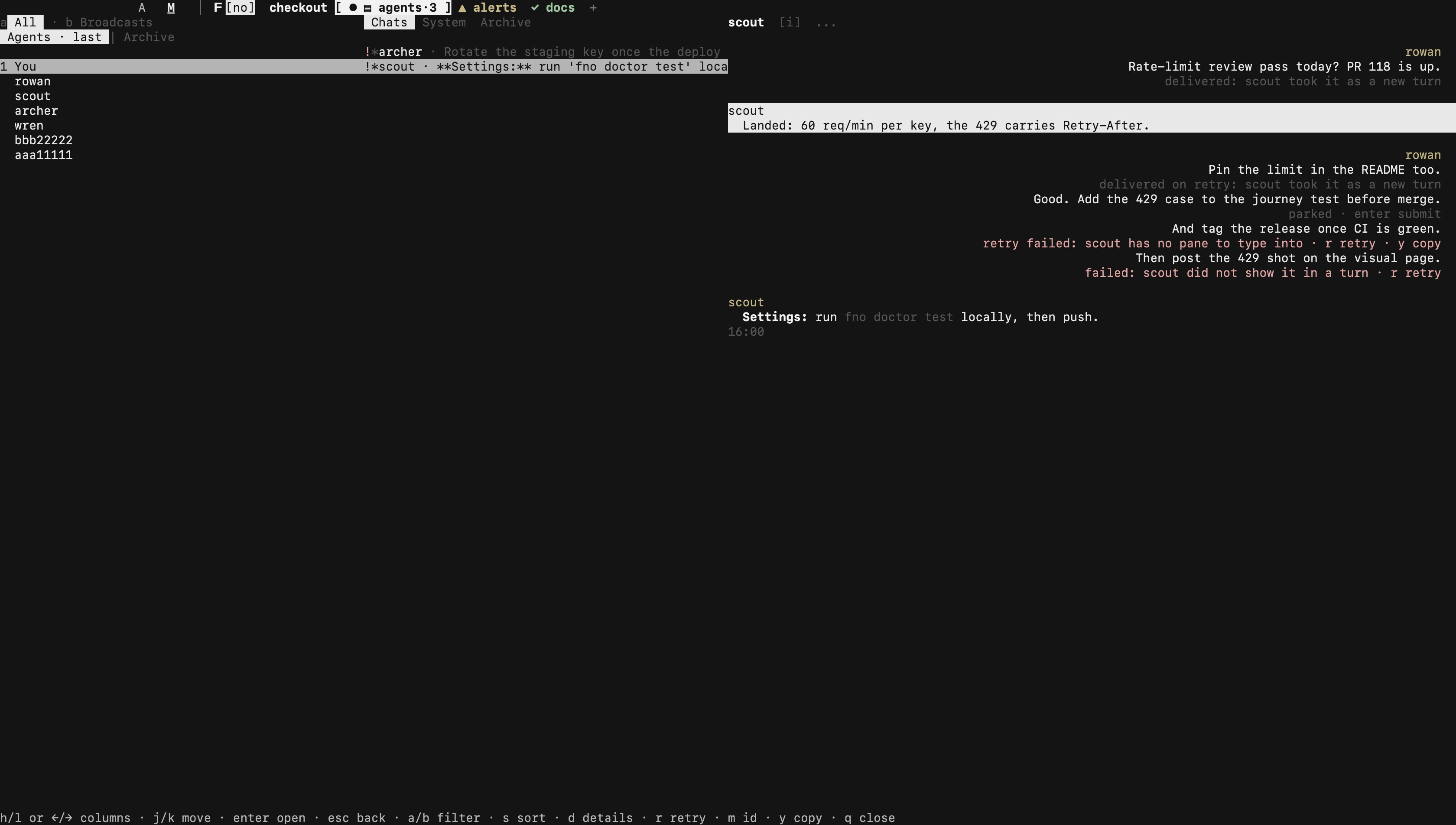
Note: The painted spans are on the main branch after F[no] 0.4.8rc2. The 0.4.7 release and the 0.4.8rc1 and 0.4.8rc2 pre-releases print the markers as typed. Run fno --version to check your build. Update moves an installed F[no] up a release.
The view also carries a conversation between two agents that both live on another machine. It checks for changes in the background, so reading never blocks the keyboard.
Copy a mail ID or a body
Select a message and pressy to copy its mail ID. The ID is a fmail- code. Press Y to copy the whole body. After either copy, a notice names what the view copied. To see where a copy of the ID went, read the receipts in Message agents.
Reply from the view
- Select a message and press
r. - The reply to message popup lists the two participants of the conversation. Move with the arrow keys or
jandk, and pressEnter. The one you choose is the prompt your reply types into. Choose the agent that must act on your words. - Type your reply in the composer after the seeded reference
re <SENDER>/<MAIL_ID>: "<SUMMARY>". The seed is text like any other. Edit it, or press Ctrl+u to empty the composer and write your own words. - Press
Enter. F[no] types your reply at that participant’s prompt.
reply to <NAME> sending reports the send. If that participant has no pane on screen, the notice reads reply: <NAME> has no pane on screen; open a portal first. A portal is a pane that shows a session’s live screen. Open one as Attach to the worker shows, then reply again.
A message from another machine
A message that another machine carries is a carrier row. Pressingr on it opens no composer. The notice names the command that reaches the sender:
<NAME>@<HOST> is the remote sender’s label from the row. Ask your agent:
What the agent runs
Note: The carrier notice is on the main branch after F[no] 0.4.8rc2. The 0.4.7 release and the 0.4.8rc1 and 0.4.8rc2 pre-releases name no command there, so use mail directly.
Next steps
- Message agents: read the receipt table, recover a NOT LANDED message, and read a held release.
- Remote sessions: connect your machines, so the view carries their mail.
- Set mux keys and resize splits: change the
open-messagesbinding and the column widths.