

Note: These Decisions views are for F[no] 0.4.6. F[no] 0.4.5 does not include them.
Prerequisites
Install F[no] through the quickstart. For the mux, open it through Run a fleet. For a browser, follow Command page to start the web bridge and open its token-bearing URL. That guide also explains access from another device.Open the table
Your agent can explain a decision, but it cannot open the mux for you. In your open mux:- Click the bell in the tab bar. Select Decisions, beside Questions. You can also press
3while the panel is open. - Select an entry with
jork. Each entry shows its date, state, subject and decision text. - If the entry answered a question, press
Enterto open that question. - Press
Escto close the panel. Pressprefix+mto open the full Decisions board.
Ctrl+b: press it, release it, then press m. If your keys differ, check the active keys for the decisions action.

fno inbox decisions --table opens the interactive table directly. It requires your terminal. In a browser, open the /hq page through the bridge and choose decisions. The browser opens on synapse first.
The mux table opens at once. It shows the last list it read, or loading decisions... on the first open. It then reads the full list in the background and updates the rows.
Read the columns
Each row is one decision.
The mux board lists decisions newest first under a header row. If the selected decision answered a question, that question appears below it. Press
g to open the question from the mux board. A quote alone does not prove authority.
The web table also shows the answered question. The web shot below shows demo rows.

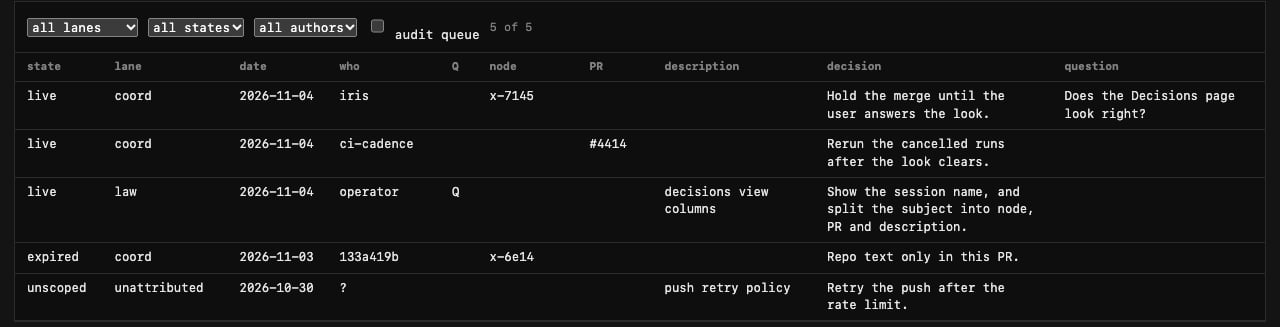
node, pr or topic. A row recorded before the kind existed shows the kind that F[no] reads from its subject text.
If available, the session’s registered name appears in who. Otherwise, the column shows the recorder’s first eight characters. If no recorder exists, it shows user, agent or ?.
Filter and review the table
Use these keys in the full mux board:
Each filter cycles through its values and back to all. Filters combine: a row must match every active filter. The header shows the current filters and the number of matching rows. The author filter classifies recorded authority.
? means no recorded authority. The authority lanes explain law, coord, grant and unattributed.
The audit queue contains unattributed decisions and decisions with no recorded authority, excluding reviewed rows. Press v after you inspect a row to remove it from that queue. The review mark changes no authority. The decision stays in history.
In the notifications panel’s All tab, the decisions have no author alert opens the audit list in Decisions. Select Decisions again, or press 3, to return to all recent entries.
The web page has the same filters as drop-down lists and an audit queue check box. It shows at most the newest 300 matching rows. It is read only: you cannot mark reviewed, retract or overrule there.
Retract or overrule a decision
A retraction keeps the old row asretracted. An overrule records replacement text on the same subject and keeps the old row as superseded. Neither action removes the old row.
Warning: A retraction or overrule changes the law store. The pane requires your terminal to authorize the change. Your agent cannot perform this interaction for you.
- In the full mux board, press
roro. A new pane opens its own Decisions table. It does not keep your selection or filters. - Select the intended row again with
jork. Check its subject and decision text before you act. - Press
rfor thereasonprompt, orofor thenew textprompt. - Type your reason or replacement text. Press
Enterto submit it. An empty entry cancels the action. Text that starts with-also cancels it. - Read the result. A successful change prints
done. A refusal printsthe door refusedwith an exit code. Read the refusal details before trying again. - At
press enter, pressEnterto return to the pane’s table. Check the old row’s state. If filters hide it, cycle them back to all.
fno inbox decisions --table directly in your terminal, start at step 2. When you finish, press q to close the pane’s table.
Next steps
- Decisions and law explains how a decision earns its authority.
- Mux keys shows how to check your active keys and the prefix.
- Answer from chat shows how a ruling you type becomes a decision.